Friday, 17 June 2011

UIDatePicker


Design Phase: For this demo we will take a segment control, a label and a datePicker view and on the selected index of the segmented control we will try to change the modes of the datepicker view. The different modes available for datepickers are as follows:

  1. UIDatePickerModeTime
  2. UIDatePickerModeDate
  3. UIDatePickerModeDateAndTime
  4. UIDatePickerModeCountDownTimer


The default mode is UIDatePickerModeDateAndTime

Our final view looks like this .


Step 1: Open Xcode and create a new window based application project add UIViewController subclass file and name them MyViewController.

Step 2: Go to the .h file of MyViewController and declare objects of the segmented control, label and picker also you need to declare a method which will be called when the value of the segmented control will change, so here's how the code looks

@interface MyViewController : UIViewController {

UIDatePicker *datePicker;
UISegmentedControl *segmentedControl;
NSArray *modes;
UILabel *lbl;
}
-(void)changePickerView:(UISegmentedControl*) sender;

@end

Now go to the .m file of the MyViewController class and into its init method start giving the frame and text to your controls here's how you do that

- (id)initWithNibName:(NSString *)nibNameOrNil bundle:(NSBundle *)nibBundleOrNil {
if (self = [super initWithNibName:nibNameOrNil bundle:nibBundleOrNil]) {
// Custom initialization

//setting the frame of the date picker
datePicker = [[UIDatePicker alloc]initWithFrame:CGRectMake(1, 216, 320, 216)];

//settings for the segmented control
modes = [[NSArray alloc]initWithObjects:@"1",@"2",@"3",@"4",nil];
segmentedControl = [[UISegmentedControl alloc]initWithItems:modes];
[segmentedControl setFrame:CGRectMake(20, 144, 280, 44)];
segmentedControl.segmentedControlStyle = UISegmentedControlStyleBar;
[segmentedControl setBackgroundColor:[UIColor blackColor]];
[segmentedControl addTarget:self action:@selector(changePickerView:) forControlEvents:UIControlEventValueChanged];

//settings for the label
lbl = [[UILabel alloc]initWithFrame:CGRectMake(53, 95, 217, 21)];
lbl.hidden = YES;
[lbl setBackgroundColor:[UIColor blackColor]];
lbl.textColor = [UIColor whiteColor];
lbl.adjustsFontSizeToFitWidth = YES;

//setting the background color to black
[self.view setBackgroundColor:[UIColor blackColor]];
}
return self;
}

Now into the loadView method add these view

- (void)loadView {
[super loadView];
[self.view addSubview:datePicker];
[self.view addSubview:segmentedControl];
[self.view addSubview:lbl];
}

Step 3: Now coming to our function that we made earlier called as
-(void)changePickerView:(UISegmentedControl*) sender

here's how the body of this function looks

-(void)changePickerView:(UISegmentedControl*) sender
{
switch (sender.selectedSegmentIndex) {

case 0:
datePicker.datePickerMode = UIDatePickerModeTime;
lbl.hidden = NO;
lbl.text = @"UIDatePickerModeTime";
break;

case 1:
datePicker.datePickerMode = UIDatePickerModeDateAndTime;
lbl.hidden = NO;
lbl.text = @"UIDatePickerModeDateAndTime";
break;

case 2:
datePicker.datePickerMode = UIDatePickerModeDate;
lbl.hidden = NO;
lbl.text = @"UIDatePickerModeDate";
break;

case 3:
datePicker.datePickerMode = UIDatePickerModeCountDownTimer;
lbl.hidden = NO;
lbl.text = @"UIDatePickerModeCountDownTimer";
break;

}
}

The above code is quite self-explanatory. We have changed the mode of the date picker on the basis of the index change of the segmented control.

Step 4: Go to the AppDelegate.m file and add this view to your window and your all done

#import "DateTimePickerDemoAppDelegate.h"
#import "MyViewController.h"

@implementation DateTimePickerDemoAppDelegate

@synthesize window;

- (void)applicationDidFinishLaunching:(UIApplication *)application {

// Override point for customization after application launch
MyViewController *mVC = [[MyViewController alloc]init];
[window addSubview:mVC.view];
[window makeKeyAndVisible];
}

Step 5: Run the application by pressing the Build and Go and you will get the below result


UIDatePickerModeCountDownTimer

UIDatePickerModeDate


UIDatePickerModeTime


Friday, 10 June 2011

Displaying UITableView


The most important component in a mobile is table, your music player contains a list of songs which you touch they begin to play well the component which holds all those songs is your table. In this blog i will demonstrate you on how to display names in the table from an array. Here's a glimpse of our final output


Step 1: Open Xcode and create a window based application and add a class file, only this time it wont be a view controller class it would be a UITableViewController subclass.


Now save this UITableViewController subclass file with an appropriate name.

Step 2: Go to the .h file of your tableview controller class, i have named my file as MyTableViewController, declare an object of NSArray class which will hold the names of the countries which we want to display in our table, here's the code for that

@interface MyTableViewController: UITableViewController {
 NSArray *table_content;
}
@end

Step 3: Now go to the .m file of MyTableViewController and add objects to the array called table_content in the init method

- (id)initWithStyle:(UITableViewStyle)style {
    if (self = [super initWithStyle:style]) {
table_content = [[NSArray alloc]initWithObjects:@"India",@"Germany",@"USA",@"South Africa",@"China",@"Japan",nil]; 
    }
    return self;
}

Step 4: since you have took a UITableViewController subclass then in this case you will be provided by the datasource and delegate methods by the tableviewcontroller subclass in your source code file here's how those method looks like


Let me give you an small explanation on those datasource protocol methods of the UITableViewController class

UITableViewDataSourceProtocol: The UITableViewDataSource protocol is adopted by an object that mediates the application’™s data model for a UITableView object. The data source provides the table-view object with the information it needs to construct and modify a table view. As a representative of the data model, the data source supplies minimal information about the table view’s appearance. The table-view object’s delegate—an object adopting the UITableViewDelegate protocol—provides that information. The required methods of the protocol provide the cells to be displayed by the table-view as well as inform the UITableView object about the number of sections and the number of rows in each section. The data source may implement optional methods to configure various aspects of the table view and to insert, delete, and reorder rows. Many methods take NSIndexPath objects as parameters. UITableView declares a category on NSIndexPath that enables you to get the represented row index (row property) and section index (section property), and to construct an index path from a given row index and section index (indexPathForRow:inSection: class method). (The first index in each index path identifies the section and the next identifies the row.)

UITableViewDelegate: The delegate of a UITableView object must adopt the UITableViewDelegate protocol. Optional methods of the protocol allow the delegate to manage selections, configure section headings and footers, help to delete and reorder cells, and perform other actions. Many methods of UITableViewDelegate take NSIndexPath objects as parameters and return values. UITableView declares a category on NSIndexPath that enables you to get the represented row index (row property) and section index (section property), and to construct an index path from a given row index and section index (indexPathForRow:inSection: method). Because rows are located within their sections, you usually must evaluate the section index number before you can identify the row by its index number.

a) numberOfSectionsInTableView:  - Specifies the total number of sections in a table view.

b)tableView: numberOfRowsInSection: - how many rows would be present in a table.

c)tableView: cellForRowAtIndexPath: - set the text for table.

d)tableView: didSelectRowAtIndexPath: - performs some action when the user selects any row of the table. 

These are the important methods which will be provided by the UITableViewController subclass by default in your source code file.

Step 5: now we will set the row and text of our table with the help of the functions tableView numberOfRowsInSection and tableView cellForRowAtIndexPath.

- (NSInteger)tableView:(UITableView *)tableView numberOfRowsInSection:(NSInteger)section {
    return [table_content count];
}

The above function tells how many rows will my table have, We have used the count method of the array, as we want the rows of the table as per my array count.

Now the next function is tableView cellForRowAtIndexPath and the only one line of code that you have to write in it is 

cell.textLabel.text = [table_content objectAtIndex:indexPath.row];

Step 6: Now go to the app delegate .m file and add the view to the window like this

#import "SimpleTableAppDelegate.h"
#import " MyTableViewController.h"
@implementation SimpleTableAppDelegate
@synthesize window;

- (void)applicationDidFinishLaunching:(UIApplication *)application {    

    // Override point for customization after application launch
 MyTableViewController *mtvc = [[MyTableViewController  alloc]initWithStyle:UITableViewStyleGrouped];
        [window addSubview:mtvc.view];
        [window makeKeyAndVisible];
}

Step 7: Build and run the application you will see the following output


Final output


Display Selected Text: Lets say you want to display the selected text of the Table into an alert view then in that case you can use the tableView didSelectRowAtIndexPath function. Here's the code to do that


- (void)tableView:(UITableView *)tableView didSelectRowAtIndexPath:(NSIndexPath *)indexPath {
NSString *str = [NSString stringWithFormat:@"%@",[table_content objectAtIndex:indexPath.row]]; //typecasting
UIAlertView *alertbox = [[UIAlertView alloc]initWithTitle:@"Table Demo" message:str delegate:nil cancelButtonTitle:@"Cancel" otherButtonTitles:@"OK",nil];
 [alertbox show];
}


Now when you run the application and select any of the rows of the table you will get the output just like the below images


Monday, 4 April 2011

Drawing a Rectangle

In this post we will learn how to create geometric views in the iPhone.

Step 1: Open Xcode select the windows based application template give your project an appropriate name, after doing this add UIViewController subclass file to your application. In iPhone if we want to draw some shapes or perform any sort of drawing stuff then in that case you have to take a separate view and then add this view to your view controller class, you may follow this mechanism not only for drawing geometric views but to create your custom views like a login control, etc. So now after adding UIViewController subclass file add UIView subclass file and name it Rectangle, since it’s the rectangle shape that we will be drawing first,


Step 2: Select the Rectangle.m file and inside that file you will find a method called as drawRect, the drawRect method allows the programmer to create his/her own custom views, so in this case I just want a small rectangle to appear in my view so for that add the following code in the drawRect method

- (void)drawRect:(CGRect)rect {

// Drawing code

CGContextRef context = UIGraphicsGetCurrentContext();

CGContextSetLineWidth(context, 3.0f);

CGContextSetStrokeColorWithColor(context, [UIColor blueColor].CGColor);

CGContextAddRect(context,CGRectMake(80, 80, 120, 120));

CGContextStrokePath(context);

}

Code Explanation:

CGContextRef : It represents a drawing environment where the developer can draw his views. The drawRect method takes a parameter called as rect and this method gets called directly, so now when you will create the object of this method in the myviewController.m file and pass the parameter of frames to the init method of the rectangle class this frame will be referred to as the current context and inside the current context you can draw anything

UIGraphicsCurrentContext(): It represents the current graphics context.

CGContextSetStrokeColorWithColor: This method will set the color for the context

CGContextAddRect: This method will add a rectangle path in the current context, it takes two parameter one is the context in which you want to draw the rectangle and the other is the frame of the rectangle like its height, width, x and y.

CGContextStrokePath: This method will paint a line along the given path in the context.

Step 3: Select the myviewController.h file and declare the object of the rectangle class

#import

#import "Rectangle.h"


@interface myviewController : UIViewController {

Rectangle *r;

}


@end


and now traverse to the myviewController.m file and select the loadView method and add this piece of code

- (void)loadView {

[super loadView];


r = [[Rectangle alloc]initWithFrame:CGRectMake(20, 82, 280, 348)];

[self.view addSubview:r];

}


Code Explanation: The above code just adds the rectangle view to the current view.

Step 4: Select the appDelegate.m file and add the myviewController view to the iPhone window

#import "DrawingShapesAppDelegate.h"

#import "myviewController.h"

@implementation DrawingShapesAppDelegate


@synthesize window;


- (void)applicationDidFinishLaunching:(UIApplication *)application {


// Override point for customization after application launch

myviewController *obj = [[myviewController alloc]init];

[window addSubview:obj.view];

[window makeKeyAndVisible];

}

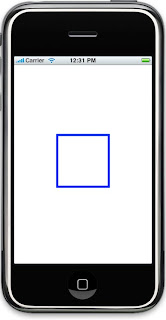
Step 5: Press build and go to get the output just like below


If you want to fill in this rectangle with color then in that case you can update the drawRect method and add this two lines

- (void)drawRect:(CGRect)rect {

// Drawing code

CGContextRef context = UIGraphicsGetCurrentContext();

CGContextSetLineWidth(context, 3.0f);

CGContextAddRect(context,CGRectMake(80, 80, 120, 120));


CGContextSetFillColorWithColor(context, [UIColor blueColor].CGColor);

CGContextFillPath(context);

}


BitCode hopes that this post has helped you in clearing your concepts regarding the drawing geomeric shapes. You can post your queries at bitcode.pune@gmail.com for any technical assistance.